 MyRewards
How MyRewards works
A short guide for parents and guardians. Children need no instructions: they see what to do on their own screen.
- You set the choresand what each one is worth.
- They tick them offon their own device or yours.
- You approvein one tap, with a word of praise if you like.
- Points become rewardsor pocket money you agree on.


Getting started
A parent or guardian creates the account: Continue with Apple, Continue with Google, or email and password. Children never need an account or an email address.
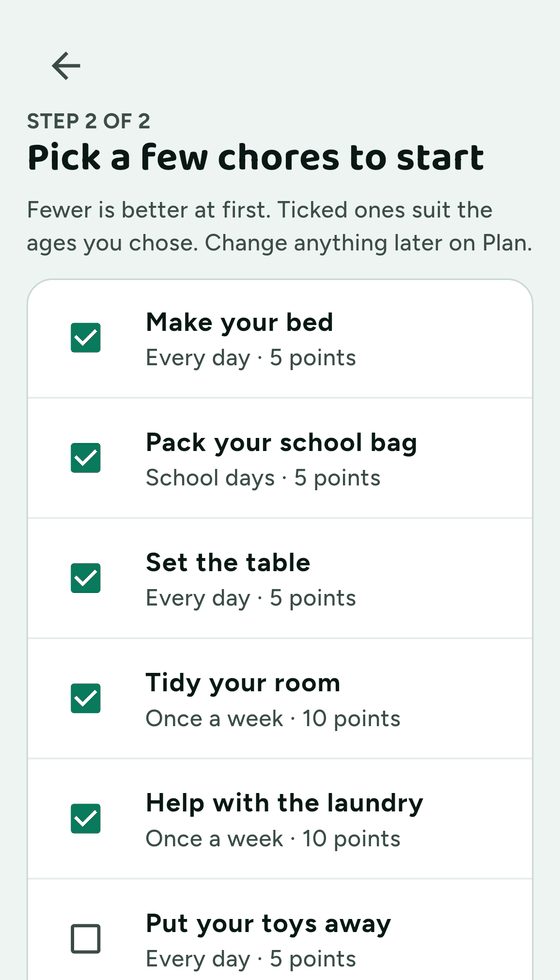
Choose Start a new family, then add each child with a name, an age range (5–7, 8–10, 11–13 or 14–17) and a colour. MyRewards suggests a few chores that suit their ages, already ticked. Untick any that don't fit; fewer is better at first. Five starter rewards are added too, and everything can be changed later.
Until you approve your first chore, the Today tab shows a short Getting started list.
Children's devices
Sharing one phone or tablet
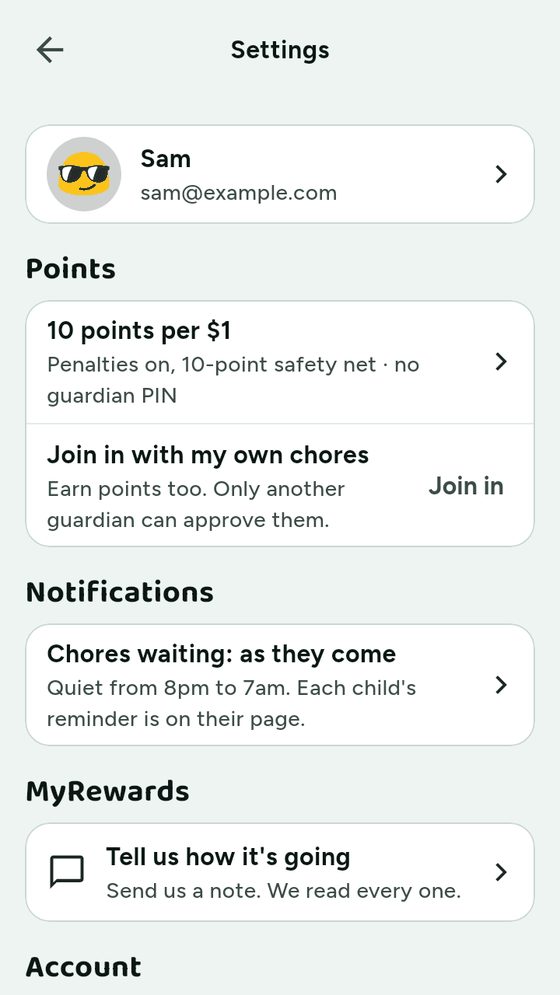
Tap your name at the top of the screen and choose who is using the device. Before any device is paired, Today also offers a Hand to button for each child. To stop a child opening the parent view, set a guardian PIN in Settings → Points.
Their own device
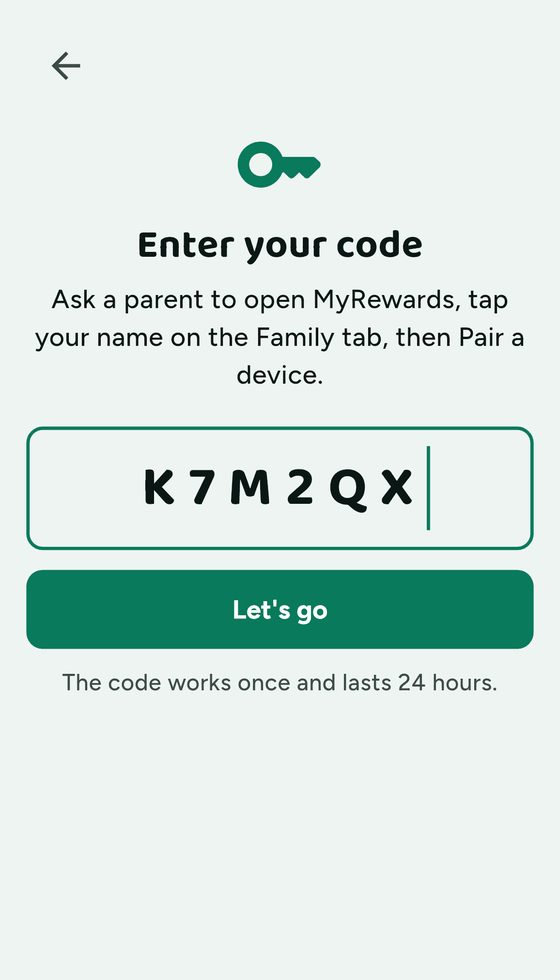
Open Family, tap your child, then Pair a device. On the child's device, open MyRewards, tap I have a code from my parent and enter the six-character code. It works once and lasts 24 hours. The device then stays signed in as that child, and can never approve, price or pay out.
A child's own device can tick chores without internet. They are sent as soon as it is back online.
Chores
Open Plan → Chores and tap Add chore. Give it a name, the points it is worth, who it is for (one child, or everyone) and how often:
- every day, weekdays, weekends, or the days you choose
- a number of times a week
- once a month
- once only
A chore for everyone appears for each child separately, and each child earns the points for doing it. Tap any chore to change it; the menu beside it deletes it. History already recorded is kept.
Not sure how many points? The chore form shows the range used by the starter chores for that child's age.
What your child sees
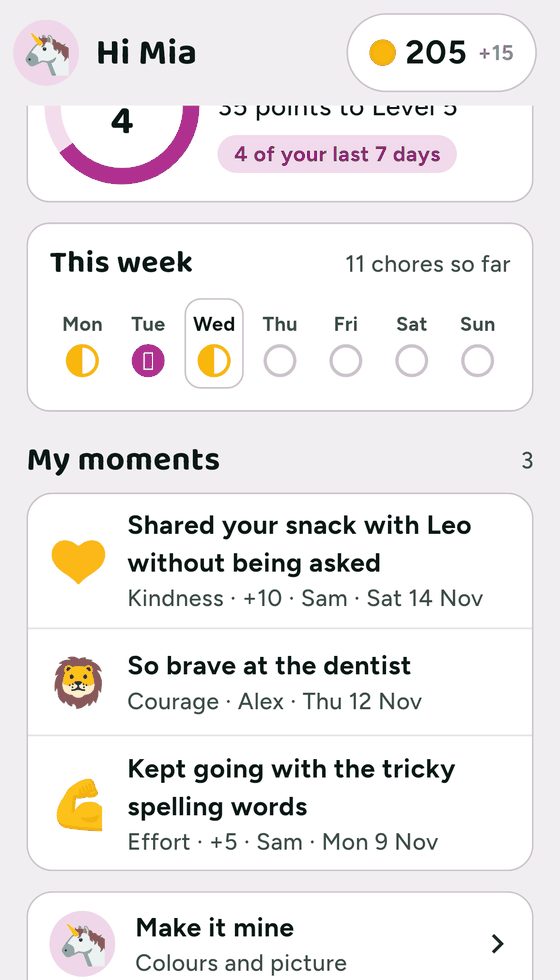
Three tabs: Today, Rewards and Me.
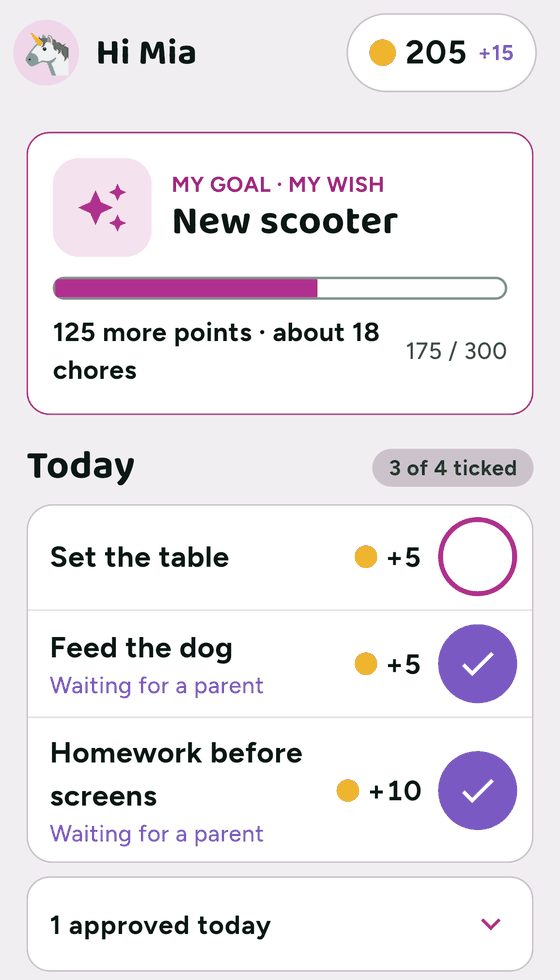
- Today puts their goal at the top: a reward or wish, a bar that fills, and roughly how many chores to go. Below it are today's chores. They tap the circle to tick one, and can undo it while it waits for you. Approved chores fold away, and anything left from yesterday sits under Catch up on yesterday.
- Rewards shows what they can ask for now, what they are saving for, and their wishes.
- Me shows their level, their week, their moments and praise, and their own colours and picture.
Tapping their points at the top shows their balance, points on the way, and what a point is worth in dollars.
Approving
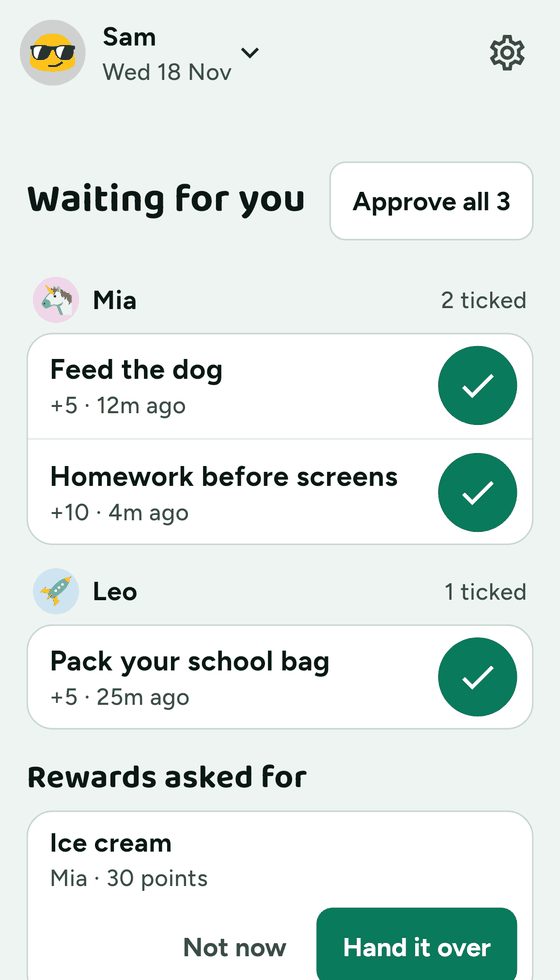
Everything waiting for you is on Today, grouped by child, with how long ago each was ticked. Anything waiting more than four hours turns amber.
- Tap the ✓ to approve. The message that follows has Undo, and two quick lines of praise you can send with one tap.
- Tap the chore itself to add your own words of praise, give part points, or say Not yet with a reason your child will see.
- Approve all, or Approve both for one child, when you trust the lot.
Rewards your child has asked for and wishes waiting for a price appear on the same screen.
If you join in with your own chores, another guardian approves them. Nobody can award points to themselves.
Something extra From version 1.1.1
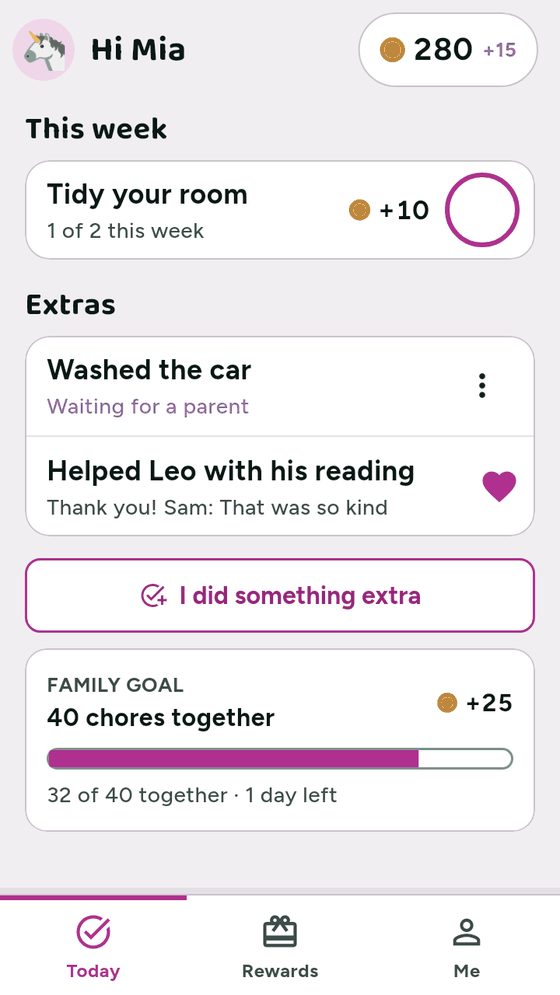
Children do helpful things that were never on the list. At the bottom of their Today screen they can tap I did something extra, write what they did (“Washed the car”), and say whether it was today or yesterday.
It arrives in your inbox marked Extra. Tap it and choose:
- Praise only, a simple thank you with no points;
- a number of points, from quick choices or your own amount; or
- Not this time, with a kind reason if you like.
Tick Also make it a chore to add it to their list for next time. A child can have three waiting at once, and can take one back before you answer.
Rewards and wishes
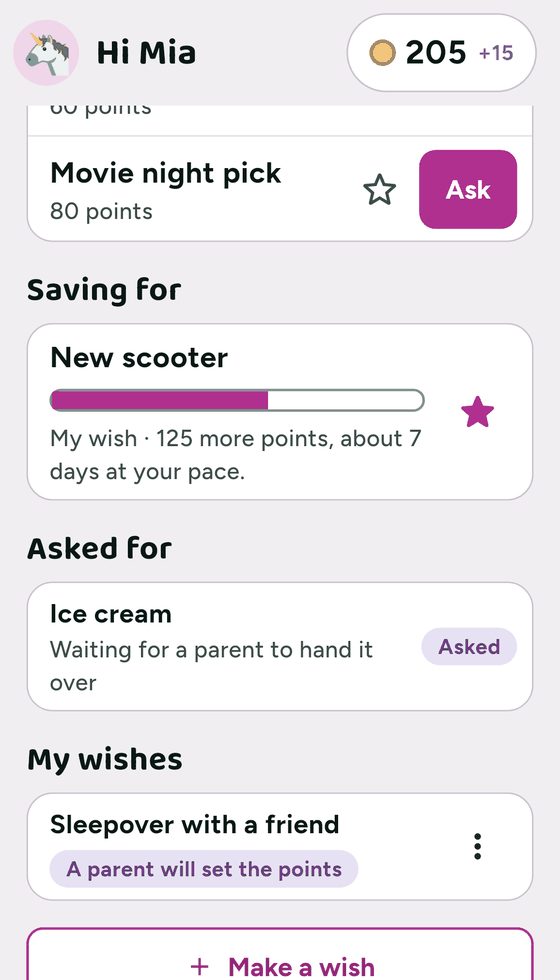
Set rewards in Plan → Rewards: an ice cream, choosing the movie, a later bedtime, money. Each has a points price, for everyone or for one child.
When a child has enough points they tap Ask. You see it on Today and choose Hand it over or Not now. Children can star a reward to make it their goal.
Wishes are rewards a child asks for that aren't on your list. You set the points it should cost, or say not this time.
Points and pocket money
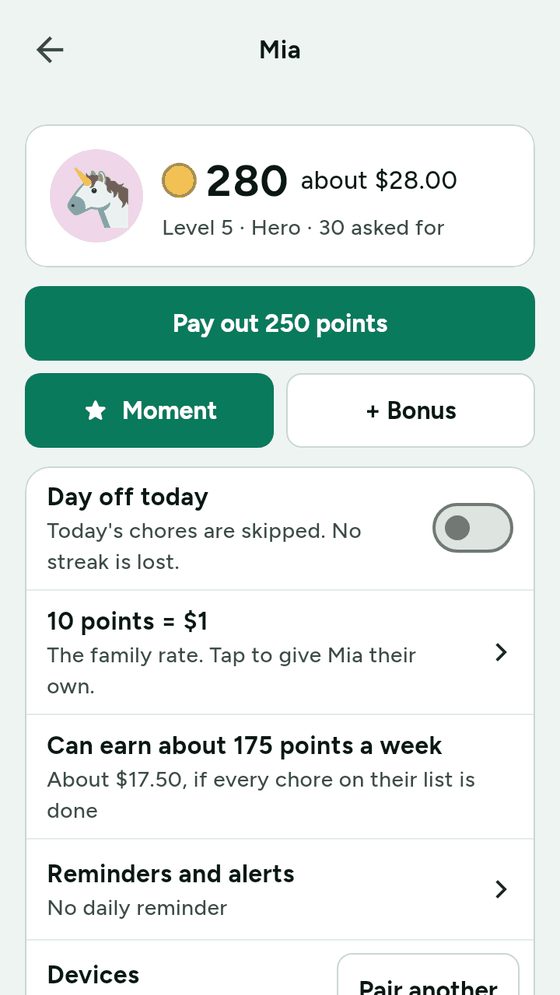
You choose how many points make a dollar in Settings → Points. Ten points to the dollar is the starting rate. Children see the rate on their own screen, so tell them before you change it.
A rate for each child From version 1.1.1: on a child's page, tap the rate to give them their own, for example a teenager's points worth more. Children only ever see their own rate.
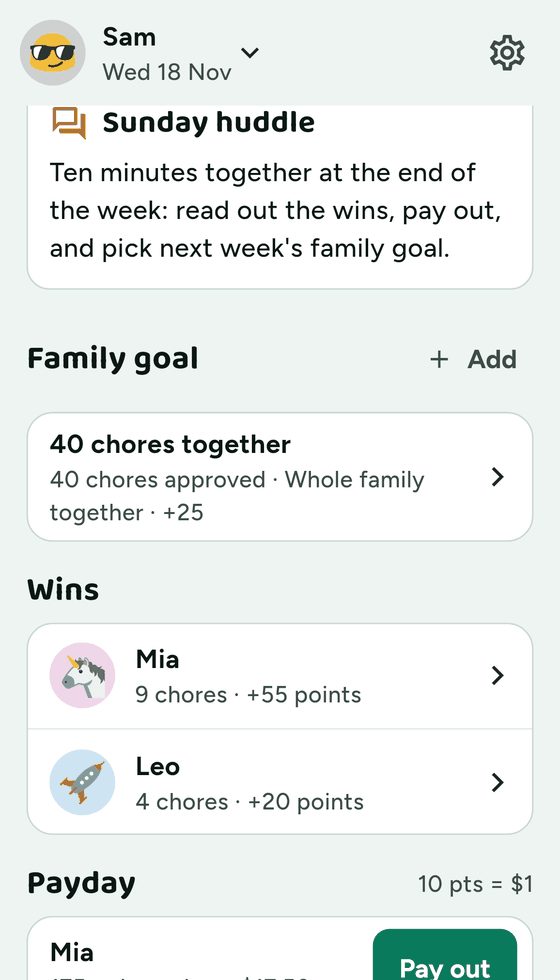
Payday: pay out from the Week tab, or from a child's page with Pay out. The history records how much was paid and which points it used.
Each child's page also shows roughly what they can earn in a week from their current chores. From version 1.1.1
Balances never go below zero. Penalties are off unless you turn them on in Settings, and even then a small safety net of points can't be taken away.
Moments
Not everything worth noticing is a chore. Open a child's page and tap Moment to recognise kindness, courage, effort, helping or responsibility, with a short note and points if you want to add them.
Moments show on your child's Today screen for a few days and stay on the wall in their Me tab, alongside the praise you've sent with approvals.
The week, goals and streaks
The Week tab brings the week together: the family goal, each child's wins, and payday.
Family goal: set one in Plan → Goals, for example “40 chores together”, with bonus points when it is reached. Everyone pulls the same way; there are no rankings between siblings.
Streaks count only the days a chore is due. A chore waiting for your approval still counts, and you can give a child a day off from their page so nothing is lost.
Notifications and reminders
MyRewards asks about notifications after the first chore is ticked, not before. In Settings → Notifications each guardian chooses to hear about waiting chores as they come, once a day at a set time, or not at all. Family quiet hours keep the evenings calm.
Children hear when a chore is approved or a reward is ready. A daily reminder for each child is set on their page under Reminders and alerts, and it stays quiet once the day's chores are ticked.
More grown-ups
Add a partner, grandparent or carer from Family → Invite. They create their own account, choose Join my partner's family and enter the code. It works once and lasts 24 hours. Every guardian can approve, price wishes and pay out.
Grown-ups can join in too: Settings → Join in with my own chores. Another guardian approves your chores.
Your account and data
Settings → Account and data lets you export your family's data, change your email, or delete your account. Deleting asks you to type DELETE first. If you are the only guardian, the whole family and its history are deleted.
No advertising, no tracking and nothing sold. Read the privacy policy for the details.
Tell us how it's going From version 1.1.1
In Settings → Tell us how it's going you can send us a note: type it, or use your keyboard's microphone. You can choose to let us quote it with your first name only, and take that back at any time.
The same page has a link to review MyRewards in the App Store or Google Play. A review helps other families find it.
For help with a problem, email myrewards@websupreme.com.au or see Support.